This chapter describes how to start simulation runs for modeling and alternatives and how to check their status.
Contents
To start a simulation run, open the alternative side menu using the |
|
button |

From there, click the button |
|
to open an information dialog that provides information and options based on the status of the current simulation runs. |

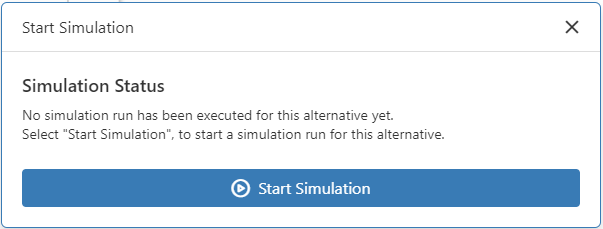
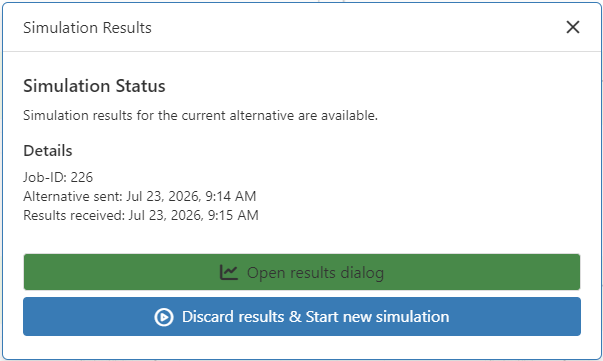
If no simulation run has been executed yet, the message shown in Figure 1 appears; if results from a simulation run are already available, the message shown in Figure 2 appears.
The simulation can be started using one of the buttons shown in the following figures.
Figure 1 - Start Simulation Message |
Figure 2 - Simulation Results Message |
After the simulation starts, a progress bar appears in the corresponding row, providing the user with feedback on the simulation’s progress (see Figure 3).
Additional simulations can be started at any time—the number of simultaneous simulation runs depends on the respective license.
Parallel simulation jobs from different alternatives are transmitted to the server independently of one another, classified accordingly, and processed on a first-come, first-served basis (see Figure 4).
To cancel a simulation, click the |
|
button to view information about the currently running simulation (see Figure 3). |

In this window, the currently running simulation can be canceled by clicking the Cancel Simulation button.
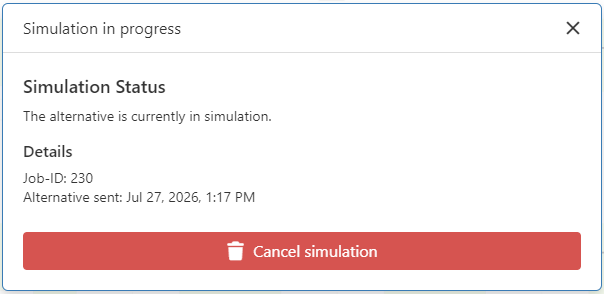
Figure 3 – Cancel Simulation
Upon successful completion of the simulation, the status indicator changes to |
|

Clicking this button displays information about the completed simulation run and also allows you to start a new simulation run (see Figure 2).
|
Note: When a simulation run is initiated, the respective alternative is encoded into a model and transmitted to a server. The server then starts a plant simulation instance using an associated template model, in which the model is automatically constructed and simulated. The simulation models that have been run are saved on the server (including the corresponding input and output data) in a unique simulation job folder for later viewing. An Explorer link to a network drive on the server is displayed in the information dialog for this simulation job folder. To access this, the (Windows) user must have the appropriate access permissions |

If the simulation fails, this is indicated by the |
|
or |
|
button. Clicking this button displays information about the failed simulation run. |


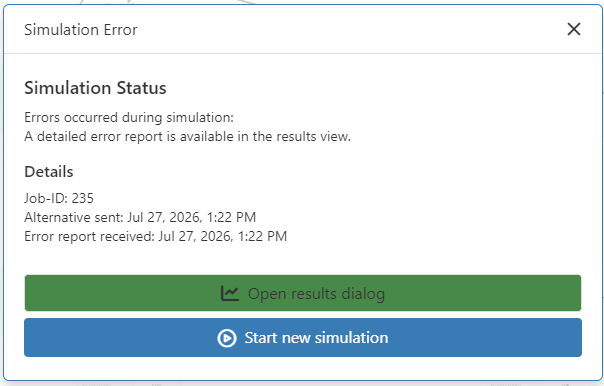
Figure 4 - Failed Simulation Run
Der Button |
|
opens the simulation results page |

If the simulation fails, additional information can be displayed here (see Figure 5). Detailed explanations of the simulation results can be found in the Results chapter.
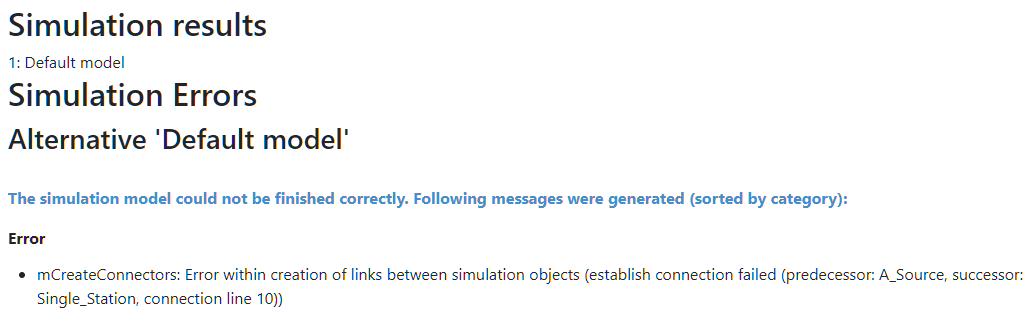
Figure 5 - Results View with Error
© SimPlan AG - Hanau District Court, Commercial Register (Part B) 6845 - info@simplan.de - www.simplan.de/en