To set the desired time using the stopwatch function, you have the following options. Details on time parameters can be found here.
Enter manually
You can manually enter the desired values in the field (see Figure 1).
Figure 1 - Enter values manually
Clicking the timer button
|

|
displays the stopwatch, which can be used to record the measurements (see Figure 2).
|
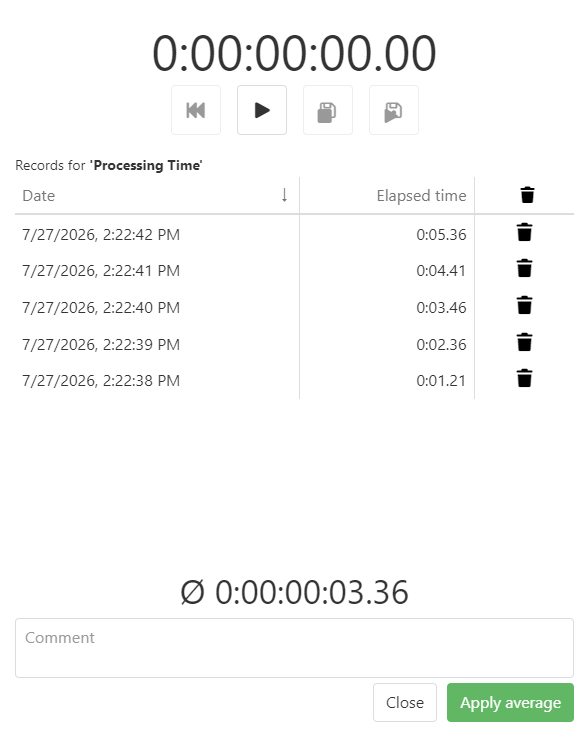
Figure 2 - Add measurements
|
Button
|
Description
|

|
The Reset button resets the measurement value
|

|
The Play button starts the measurement
|

|
The Save and Exit button saves and ends the measurement
|

|
The Save and Continue button saves the measurement and starts a new one at the same time
|

|
Clicking the trash can icon deletes the measurement
|

|
Clicking the Apply Average button applies the average of all measurements taken and closes the window
|

|
Clicking the Close button closes the window and discards any changes made
|
|
A white timer button indicates that the time was entered manually
|

|
An orange timer button indicates that the time is based on recorded measurements but manually adjusted
|

|
A green timer button indicates that the time is derived from recorded measurements
|
|
© SimPlan AG - Hanau District Court, Commercial Register (Part B) 6845 - info@simplan.de - www.simplan.de/en